Only a Site manager can add or remove a user.
Picking the right role
To help keep your website secure, it’s important to only give a user the permissions they need to do their job.
Review the user roles and permissions table to identify the correct role for your new user.
You may wish to record who made the decision and when, so you can review this in the future as part of a regular review of users.
How to add a new user
Once you have chosen the correct role for the new user, log in to your website, and go to your dashboard.
Click on ‘Users’ in the left-hand dashboard menu, this will open the ‘Users’ window.
Click on ‘Add user’ either from the left-hand menu or from the top of the Users window.
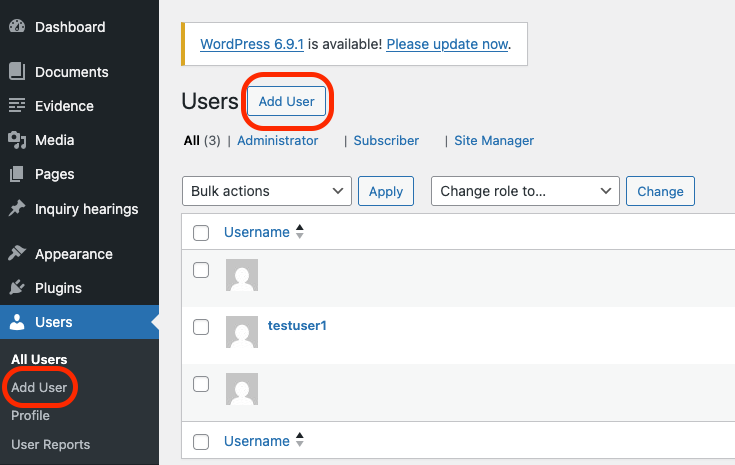
You will be taken to the ‘Add User’ window. This window contains two sections, ‘Add existing user’ or ‘Add user’.
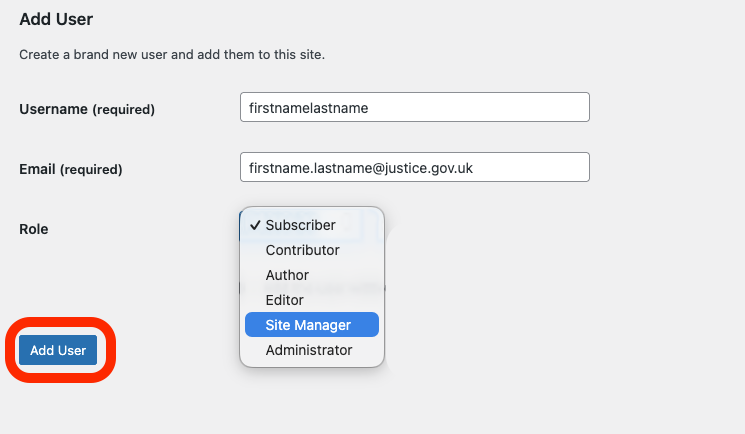
You need to complete the ‘Add user’ section, this will create a brand new user and add them to your site.
- Add a ‘username’ – this should be one word and lowercase. For example firstnamelastname
- Add the users email address
- Choose their role – Site manager, Editor or Subscriber. Do not use the Author or contributor roles, without speaking to the Website Builder Team
Click ‘Add user’, this will send an email to the new user from the platform, asking them to confirm their account.